Parent settings
Path: Parents → Settings. This page contains family rules, devices, account administration, optional security, email, backups, and family feedback. Start with Family settings; leave administrator-only service settings alone until the basic family flow is working.
Who can change what? Every parent can use the ordinary family settings and manage accounts. The parent administrator (normally the first parent created during setup) is the only person who can change network access, SMTP, backup credentials, run a backup, or revoke every child device.
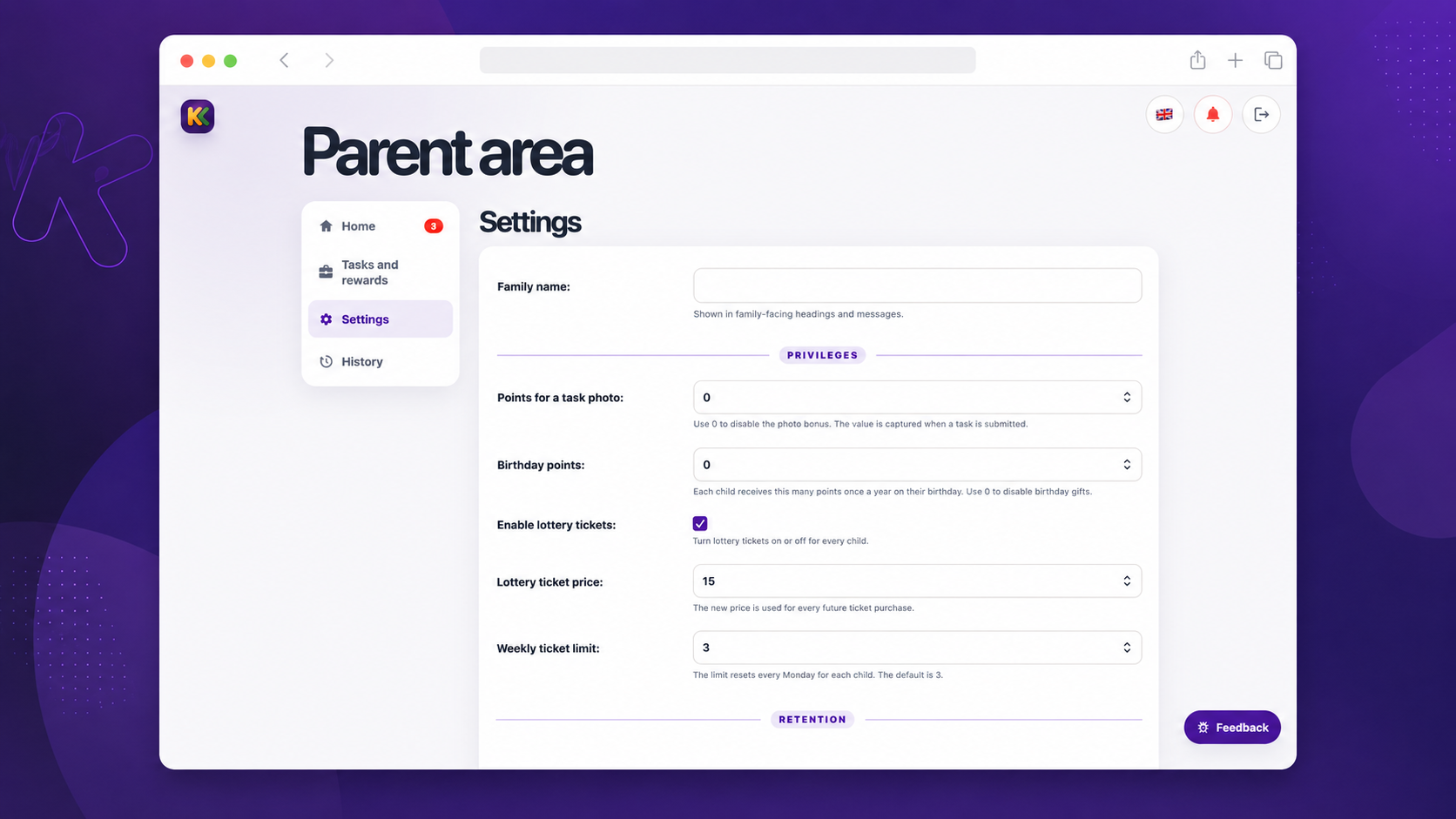
The screenshot uses fictional demonstration data.
1. Family settings
This first panel controls rules that apply to the whole family. Saving a new value affects future activity; it never changes a completed task, approved reward, or existing ledger entry.
Family name
| Field | What it means | What changes |
|---|---|---|
| Family name | The name shown in family-facing headings and messages. | Changes the displayed family name only. It does not change user names, domain names, or account access. |
Privileges
| Field | What it means | What changes |
|---|---|---|
| Points for a task photo | Extra points awarded when a child submits a task with a photo. Use 0 to turn this bonus off. |
The value is captured when the task is submitted. Later edits do not alter a request that is already pending or approved. |
| Birthday points | A yearly gift automatically awarded once for each child’s saved birthday. Use 0 to disable it. |
Future birthday awards use the new number. KinKudos never awards the same child twice in one calendar year. |
| Enable lottery tickets | Master switch for the optional scratch-ticket feature. | Turning it off prevents new purchases and weekly reminders for everyone. An already-open ticket can still be finished. Each child also has their own lottery switch. |
| Lottery ticket price | How many points a future ticket costs. | New purchases use the new price; a ticket that was already bought keeps its recorded cost. |
| Weekly ticket limit | Maximum tickets one child may buy from Monday through Sunday. | New purchases use the new limit. The count resets every Monday for every child. |
Retention
These settings control automatic deletion of uploaded images, not account history or point records.
| Field | What it means | What changes |
|---|---|---|
| Keep task photos for | How long completed task-evidence photos are stored: indefinitely, 7, 30, or 90 days. | Photos for pending or revision-requested tasks are never removed automatically, so parents can still decide fairly. |
| Keep feedback images for | How long a screenshot attached to a resolved feedback report is stored. | Screenshots for unresolved feedback are never removed automatically. |
2. Child devices
Only a paired device can list child profiles or accept a child PIN. A child profile and a child device are deliberately separate: the profile stores the child’s rules and history; the device is the browser, tablet, phone, or PWA allowed to use that profile.
| Control | Use it when | Result |
|---|---|---|
| Device name | Naming a device before pairing it on the current computer or tablet. | Gives the device a recognisable label such as “Kitchen tablet”. |
| Allow children on this device | You are physically using the child’s device. | Pairs that browser/PWA immediately. It can then select a child and enter a PIN. |
| Create private pairing link | You need to pair a different phone, tablet, or browser. | Creates a single-use link that expires after 10 minutes. Open it only on the intended device. |
| Rename | The device list is unclear. | Changes the label only; it does not interrupt access. |
| Revoke | A device is lost, sold, or no longer family-controlled. | Removes child access and child notifications on that one device. It must be paired again before it can sign in. |
| Revoke all child devices | There is a broad security concern or you want every child device to start fresh. | Administrator-only. Requires the administrator’s password and forces every child browser/PWA to be paired again. |
Read Pair a child device before using a private link.
3. Network access
This is an optional extra security layer, not a required first-setup task. Parent passwords, child PINs, and device pairing remain active whether it is enabled or not.
The panel shows the current mode, the server’s detected current IP address, and the addresses or networks currently allowed. A parent administrator must enter their own password to make a change.
| Mode | What it allows | Good use case |
|---|---|---|
| Internet access | No IP restriction. | The normal choice for most families, especially when mobile networks or home IP addresses change. |
| Restrict child access | Only listed IP addresses/networks can use child pages; parent pages are not IP-restricted. | Children should use KinKudos only from home, while parents may still travel. |
| Restrict all access | Only listed IP addresses/networks can use either child or parent pages. | A stable, known home/VPN network and an operator comfortable with recovery steps. |
For Allowed IP addresses and networks, enter one IPv4 address, IPv6 address, or CIDR network per line. Examples: 192.0.2.25, 192.0.2.0/24, or 2001:db8::/64.
Before choosing Restrict all access, include the current IP shown on the page. If the rule is wrong, everyone can be locked out and recovery requires the server administrator. See Network access for the safety checklist.
4. Email settings (SMTP)
SMTP is optional. It is used for parent password-recovery messages and, if a feedback recipient is configured, notifications about private in-app feedback. The feedback report itself is still saved in KinKudos even when email is off.
The status badge tells you whether email is enabled. When it is enabled, the page displays the server address, sender address, and feedback recipient, but never displays the SMTP password.
Select Edit settings only when you have correct details from your email provider. KinKudos tests the connection before saving it. The administrator must supply their current parent password, and must enter the SMTP password every time the settings are saved.
| Field | What to enter | Notes |
|---|---|---|
| Enable email | Turn email delivery on or off. | Turning it off prevents email sending but does not delete existing feedback reports. |
| SMTP server | Your email provider’s outgoing-mail host name. | Example format: smtp.example.com. Do not include a web URL path. |
| SMTP port | The port supplied by the provider. | Common choices are 587 for STARTTLS and 465 for SSL/TLS; use the provider’s instructions. |
| Encryption | STARTTLS, SSL/TLS, or None. |
Choose the provider’s required method. None should only be used on a trusted private mail relay. |
| SMTP username | The login name provided by the mail service. | Often the sender email address, but not always. |
| SMTP password | The mail-service password or app password. | Never displayed after saving; enter it again on every change. Prefer an app password when your provider offers one. |
| Sender email address | The address recipients see as the sender. | It must normally be permitted by the SMTP provider. |
| Feedback recipient email address | Where KinKudos sends optional feedback notifications. | Use an address a parent checks. The report remains private in the app. |
| Your account password | The current password of the administrator saving this form. | Protects sensitive configuration from someone who finds an unlocked parent session. |
5. Backups
Backups are optional to configure but strongly recommended once the family starts using KinKudos. The backup service makes encrypted daily remote copies of the family database and uploaded photos. Restoring data is intentionally a server-administrator operation, not a web button.
What the backup panel shows
| Item | Meaning |
|---|---|
| Enabled (green) | Storage is configured and the latest successful remote copy is no more than seven days old. |
| Copying (amber) | A backup is currently running. Only one run can run at a time. |
| Not enabled | No remote storage has been configured yet. |
| Attention needed (red) | The service is unavailable, a backup is stale, or the page has a reported error. Read the error before editing credentials. |
| Provider / Repository | The chosen storage service and destination, without exposing secrets. |
| Last successful backup | When a complete remote copy last finished. |
| Last integrity check | When the repository was last checked for integrity. |
| Recent backup actions | A short audit of who changed backup settings or requested a manual run. |
Back up now requests one extra backup. It never restores data and it does not run when a backup is already in progress.
Backup setup fields
Before changing these fields, keep the repository password in a safe place outside the server and plan a restore test. Incorrect credentials can stop all future backups.
| Field | What to enter | Notes |
|---|---|---|
| Storage provider | Backblaze B2 (recommended) or another S3-compatible provider. |
Choose the provider matching your credentials. |
| S3 endpoint | The provider’s S3 API host name. | Example: s3.eu-central-003.backblazeb2.com. Enter no https:// prefix or trailing slash. |
| Bucket name | A dedicated bucket name. | Use a bucket for KinKudos backups only; do not add a path. |
| Region | The provider’s region, if it requires one. | Leave empty only when your provider’s S3 service does not use a region. |
| Application key ID | The provider’s access-key ID. | Use a key limited to this backup bucket whenever possible. |
| Application key | The provider’s secret access key. | Sensitive; it is never displayed after saving. |
| Your account password | The current administrator password. | Required before backup credentials can change. |
KinKudos verifies the storage connection before saving. It keeps provider credentials outside the database in separately protected server files. A green status is useful, but a backup setup is not complete until you have performed a restore test in a safe, separate location.
6. Family accounts and application settings
Create new accounts
| Area | Fields and result |
|---|---|
| New parent account | Create a separate adult username, email address, and strong password. The email must be unique and is used for password recovery when SMTP is configured. |
| New child profile | Set the child name, optional Lithuanian greeting form, starting PIN, credit limit, lottery availability, and birthday. The child chooses a theme the first time they sign in. |
Edit parent accounts
Use Parent accounts to change a parent’s username, email address, or password. Leaving the new-password fields empty keeps the existing password. Removing a parent deactivates the account and preserves history; the final active parent account cannot be removed.
Edit child profiles
Use Child profiles to change a child’s name, credit, individual lottery switch, birthday, or PIN.
| Field | What it changes |
|---|---|
| Child’s name | The displayed name. Names must be unique. |
| Vocative name | An optional Lithuanian greeting form; leave blank for automatic wording. It does not affect the English interface. |
| Credit | The child’s lowest permitted balance, such as -100. This is the same rule shown on the child’s dashboard card. |
| Enable lottery tickets for this child | Individual lottery permission. The family-wide lottery switch must also be on. |
| Birthday | Used only for the yearly birthday-points rule. Parents can edit it directly; a child’s own requested change needs parent approval. |
| New PIN / Repeat new PIN | Resets the child’s four-digit PIN. Leave both blank to keep it unchanged. |
Removing a child deactivates the profile and preserves history. It does not make a new child able to see the old child’s data.
7. Family feedback
Parents and children can submit a private idea or problem report from the app. The report stays on this server. If SMTP feedback notifications are configured, KinKudos can also email the chosen recipient.
Use the Type and Status filters to find reports. New means not yet reviewed; Reviewed means a parent has read it; Planned means the family intends to act; Resolved means no further action is expected. Open a report to read its description, view its optional screenshot, and save the status.
To make a report useful, KinKudos also records the reporting role and name, page path, app version, language, selected theme, and browser/device description. This information remains in the family installation; it is not sent to GitHub. Screenshots follow the feedback-image retention rule above. For a reproducible software defect that should be public, use the project’s GitHub issue tracker instead, and never include family data.
Image limits and time rules
Task-evidence and feedback screenshots accept JPEG, PNG, WebP, HEIC, or HEIF up to 12 MB. Avatars use the same formats up to 5 MB and are cropped to a square. Task photos and feedback screenshots are processed for private storage; do not upload more family information than is needed to explain the task or problem.
Daily assigned tasks expire at midnight in the server’s local time. Lottery limits reset every Monday in that same calendar context. If a household lives in a different time zone from its server, discuss which clock should govern daily work before relying on the midnight rule.